The React Native playbook: everything we learned building production apps
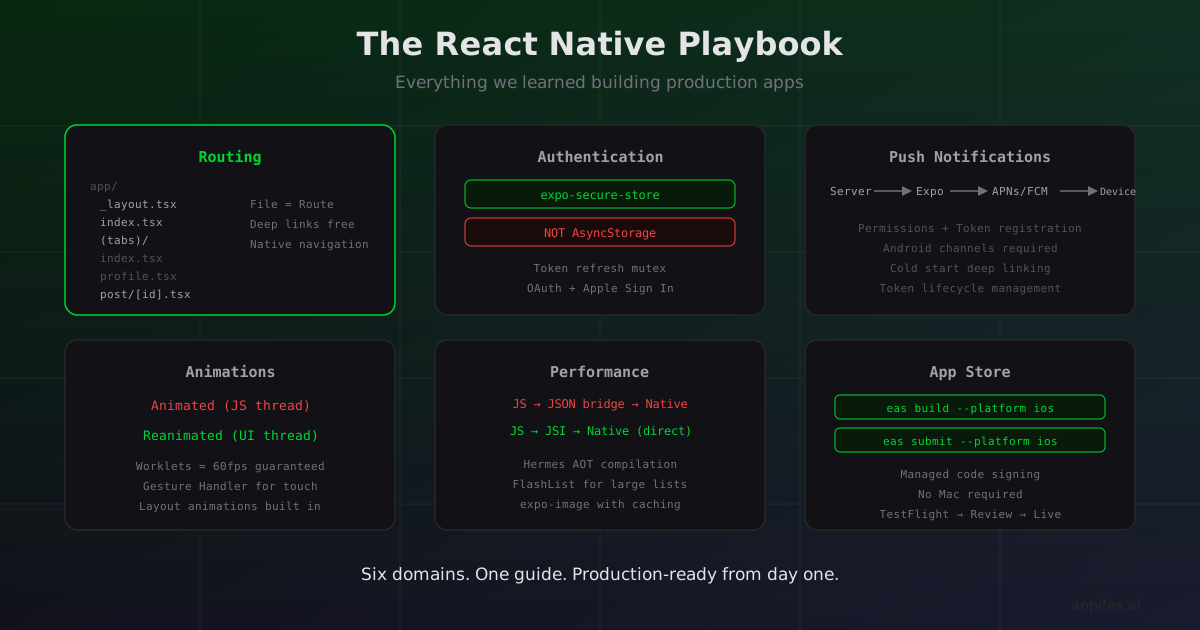
Building a React Native app that runs on your phone in development takes minutes. Shipping it to the App Store with auth, notifications, smooth animations, and solid performance takes weeks — not because any single piece is hard, but because the full picture spans six domains that no single tutorial covers end to end.
This is the guide we wish existed when we started building Appifex. It covers everything from file-based routing to App Store submission, with the actual code and the actual gotchas.
Routing: Expo Router and file-based navigation
React Navigation dominated React Native routing for years. You defined screens in JavaScript objects, wired up navigators manually, and prayed your deep links matched your navigation tree. Expo Router replaced all of that with a file system.
Every file inside app/ (or src/app/ in the default template) becomes a route. The file path is the URL:
app/
  _layout.tsx        → Root layout (wraps all screens)
  index.tsx          → /
  settings.tsx       → /settings
  (tabs)/
    _layout.tsx      → Tab navigator layout
    index.tsx        → /(tabs)  (default tab)
    profile.tsx      → /(tabs)/profile
  post/
    [id].tsx         → /post/123, /post/abc
No createStackNavigator(). No Screen component arrays. No linking configuration object. The file tree is the navigation tree.
Layouts (_layout.tsx) define how child routes are presented — as a stack, tabs, or drawer:
// app/(tabs)/_layout.tsx
import { Tabs } from 'expo-router';

export default function TabLayout() {
  return (
    <Tabs>
      <Tabs.Screen name="index" options={{ title: 'Home' }} />
      <Tabs.Screen name="profile" options={{ title: 'Profile' }} />
    </Tabs>
  );
}
This compiles to native UITabBarController on iOS and BottomNavigationView on Android — the actual platform navigation component, not a JavaScript reimplementation.
Deep linking comes free
Because routes are file paths, every screen automatically has a URL. app/post/[id].tsx responds to /post/123 with zero configuration. Universal links, push notification deep links, QR codes — any URL that matches a file path works.
// app/post/[id].tsx
import { useLocalSearchParams } from 'expo-router';

export default function PostScreen() {
  const { id } = useLocalSearchParams<{ id: string }>();
  return <PostDetail postId={id} />;
}
Groups and route organization
Parenthesized directories — (tabs), (auth), (modals) — are groups. They affect layout but not the URL. app/(tabs)/profile.tsx has the URL /profile, not /(tabs)/profile. This lets you present the same screen with different navigation contexts (stack push, tab switch, modal slide) without duplicating code.
Navigation is just links
import { router } from 'expo-router';
router.push('/post/123');    // new screen on the stack
router.replace('/login');    // swap current screen (redirects)
router.back();               // pop
Type safety works end-to-end when you enable experiments.typedRoutes in your app config — TypeScript knows which routes exist at compile time.
Why this matters for AI-generated apps
File-based routing is structurally better for code generation. When an AI generates a new screen, it creates a file. The route exists automatically. No navigator tree to update, no linking config to sync. The mapping from intent ("add a settings page") to implementation (create app/settings.tsx) is direct.
Authentication: tokens, sessions, and secure storage
Authentication on the web is a solved problem — set an HttpOnly cookie and the browser handles the rest. Mobile doesn't have cookies. Every part of the auth flow that the web takes for granted requires explicit implementation.
Tokens, not cookies
Mobile apps authenticate with tokens — typically JWTs stored on the device:
- User enters credentials → app sends to API
- API returns access token (short-lived) and refresh token (long-lived)
- App stores both tokens securely
- Every API request includes the access token in the
Authorizationheader - When the access token expires, the app uses the refresh token to get a new one
Secure storage is not AsyncStorage
The single most common auth mistake: storing tokens in AsyncStorage. It's an unencrypted SQLite database. On a rooted/jailbroken device, anyone can read it. Use expo-secure-store instead:
import * as SecureStore from 'expo-secure-store';

await SecureStore.setItemAsync('refreshToken', token);   // encrypted at rest
const token = await SecureStore.getItemAsync('refreshToken');
await SecureStore.deleteItemAsync('refreshToken');        // on logout
On iOS, this uses the Keychain (encrypted, persists across installs). On Android, the Keystore system (hardware-backed encryption where available).
Key behaviors: values persist across app updates, maximum value size is ~2KB (JWTs typically fit), and both sync (getItem) and async (getItemAsync) APIs exist on both platforms — prefer async, especially when requireAuthentication is enabled.
The refresh token dance
Access tokens should be short-lived (15 min to 1 hour). The app needs to refresh transparently — users should never see a login screen because a token expired mid-session.
The critical detail: prevent multiple simultaneous refresh requests. If three API calls fire at once and all discover the token is expired, they all try to refresh. Depending on your backend's rotation policy, two of them might invalidate the third. Use a mutex:
let isRefreshing = false;
let refreshPromise: Promise<string> | null = null;

async function getValidAccessToken(): Promise<string> {
  const accessToken = await SecureStore.getItemAsync('accessToken');
  if (accessToken && !isTokenExpired(accessToken)) return accessToken;

  if (isRefreshing && refreshPromise) return refreshPromise;

  isRefreshing = true;
  refreshPromise = refreshAccessToken();
  try {
    return await refreshPromise;
  } finally {
    isRefreshing = false;
    refreshPromise = null;
  }
}
OAuth on mobile
Same protocol as web, but no browser address bar. expo-auth-session opens a secure in-app browser (ASWebAuthenticationSession on iOS, Custom Tabs on Android), the user authenticates, and the provider redirects to your app's scheme (myapp://auth/callback).
Apple Sign In uses a native module — faster, more trustworthy, and required by Apple if your app offers any third-party sign-in.
Managed auth services
Services like Clerk, Supabase Auth, and Firebase Auth handle the entire flow. Clerk's React Native SDK reduces auth to useAuth() returning isSignedIn and getToken() — token refresh, secure storage, OAuth providers, all managed.
Push notifications: the setup nobody warns you about
Adding push notifications should take an afternoon. It usually takes a week — not because the code is hard, but because the infrastructure is a maze of certificates, tokens, and platform-specific permission flows.
The delivery chain
Your server → Push service (Expo/FCM) → Platform gateway (APNs/FCM) → Device
Each link can fail silently. Your server sends successfully, the push service accepts it, the platform queues it, and the device is in Do Not Disturb mode. No error. The notification vanishes.
Platform configuration
iOS: Generate an APNs authentication key (.p8 file) in the Apple Developer portal. It works for all your apps and doesn't expire. Store it securely.
Android: Create a Firebase project, download google-services.json, generate a service account key for server-side sending.
Expo Push Service (recommended): A unified API that sits between your server and APNs/FCM. One API, one token format — Expo routes to the right platform based on the token.
Permission and token registration
import * as Notifications from 'expo-notifications';
import * as Device from 'expo-device';
import Constants from 'expo-constants';
import { Platform } from 'react-native';

Notifications.setNotificationHandler({
  handleNotification: async () => ({
    shouldShowBanner: true,
    shouldShowList: true,
    shouldPlaySound: true,
    shouldSetBadge: true,
  }),
});

async function registerForPushNotifications(): Promise<string | null> {
  if (!Device.isDevice) return null; // simulators can't generate push tokens

  const { status: existingStatus } = await Notifications.getPermissionsAsync();
  let finalStatus = existingStatus;

  if (existingStatus !== 'granted') {
    const { status } = await Notifications.requestPermissionsAsync();
    finalStatus = status;
  }
  if (finalStatus !== 'granted') return null;

  // Android requires a notification channel
  if (Platform.OS === 'android') {
    await Notifications.setNotificationChannelAsync('default', {
      name: 'Default',
      importance: Notifications.AndroidImportance.MAX,
      vibrationPattern: [0, 250, 250, 250],
    });
  }

  const projectId =
    Constants?.expoConfig?.extra?.eas?.projectId ?? Constants?.easConfig?.projectId;
  const token = await Notifications.getExpoPushTokenAsync({ projectId });
  return token.data;
}
Critical details most tutorials miss:
- Simulators don't generate push tokens. Always gate on
Device.isDevice. - Android notification channels are required on Android 8+. Without one, notifications arrive silently.
- A development build is required on Android from SDK 53+. Push notifications no longer work in Expo Go on Android — you need a development build.
- Permission can't be re-requested on iOS. If the user denies, you must direct them to Settings.
- Tokens change after app/OS updates. Register on every launch. Your server should upsert, not insert.
Handling received notifications
Notifications arrive in three states: foreground (app is open), background tap (user taps notification), and cold start (app was killed). The cold start case is the edge case everyone forgets:
useEffect(() => {
  function redirect(notification: Notifications.Notification) {
    const url = notification.request.content.data?.url;
    if (typeof url === 'string') router.push(url);
  }

  const response = Notifications.getLastNotificationResponse();
  if (response?.notification) redirect(response.notification);

  const subscription = Notifications.addNotificationResponseReceivedListener(
    (response) => redirect(response.notification)
  );
  return () => subscription.remove();
}, []);
Token lifecycle management
Tokens go stale when users uninstall, reset their phone, or revoke permissions. If you keep sending to dead tokens, push services throttle your sending rate. Always handle DeviceNotRegistered by removing the token from your database.
Animations: getting to 60fps
An animation that drops frames feels worse than no animation at all. The difference between 60fps and 45fps is visceral — it's the difference between "this feels native" and "this feels like a web view."
Why the built-in Animated API stutters
React Native's Animated API calculates animation values on the JS thread, sends them to the native UI thread, and repeats 60 times per second. When the JS thread is busy with user input, API responses, or rendering, the animation calculation gets delayed. Visible stutter.
useNativeDriver: true offloads interpolation to the native thread, but animation definition and callback handling still cross the bridge. Complex gesture-driven sequences still involve JS-thread round trips.
Reanimated: animations as worklets
Reanimated's key insight is worklets — small JavaScript functions that compile to native code and run entirely on the UI thread:
import Animated, {
  useSharedValue, useAnimatedStyle, withSpring
} from 'react-native-reanimated';

function FadeInCard() {
  const opacity = useSharedValue(0);

  useEffect(() => { opacity.value = withSpring(1); }, []);

  const animatedStyle = useAnimatedStyle(() => ({
    opacity: opacity.value,
  }));

  return (
    <Animated.View style={[styles.card, animatedStyle]}>
      <Text>Hello</Text>
    </Animated.View>
  );
}
The function inside useAnimatedStyle is compiled and executed on the UI thread via the Reanimated Babel plugin (automatically configured in Expo projects). The JS thread is never involved after initial setup. Animations run at 60fps even if the JS thread is frozen.
Gesture-driven animations
Combined with react-native-gesture-handler, Reanimated handles drag, swipe, and pinch at native speed:
import { Gesture, GestureDetector } from 'react-native-gesture-handler';

const translateX = useSharedValue(0);
const translateY = useSharedValue(0);

const gesture = Gesture.Pan()
  .onUpdate((event) => {
    translateX.value = event.translationX;
    translateY.value = event.translationY;
  })
  .onEnd(() => {
    translateX.value = withSpring(0);
    translateY.value = withSpring(0);
  });
Every gesture callback is a worklet executing on the UI thread. The card follows your finger with zero perceptible latency.
Common patterns
Press feedback: scale down with withSpring(0.95) on press in, spring back on press out. Staggered list entrance: delay each item's fade-in by index * 50ms. Swipe-to-dismiss: track translation, dismiss if past threshold, snap back otherwise. Use runOnJS when you need to call regular JavaScript (state updates, navigation) from a worklet.
Layout animations
import Animated, { FadeIn, FadeOut, LinearTransition } from 'react-native-reanimated';

<Animated.View entering={FadeIn.duration(200)} exiting={FadeOut.duration(200)}>
  <ListItem item={item} />
</Animated.View>
Items fade in when added, fade out when removed, slide smoothly on reorder. All on the UI thread.
Performance: what actually matters in 2026
"React Native is slow because of the bridge." You'll still find this line everywhere. It was true in 2020. The bridge is gone.
The New Architecture
The old architecture had three threads communicating through an asynchronous JSON bridge. Every interaction crossed it — serialization overhead was the bottleneck.
The New Architecture replaced this with JSI (JavaScript Interface) — a C++ layer that lets JavaScript call native functions directly, synchronously, without serialization:
Old: JS → serialize to JSON → bridge queue → deserialize → Native
New: JS → JSI → Native (direct, synchronous)
This eliminates an entire class of performance problems. Gesture handlers that used to stutter because bridge messages backed up now execute in the same frame.
Hermes compiles ahead of time
Hermes (React Native's default JS engine since 0.70) compiles JavaScript to bytecode at build time. Practical impact: app startup is 300-800ms faster, memory usage is lower (no JIT compiler in memory), and performance is consistent from the first frame.
What actually causes problems now
Too many re-renders. A state change at the top of the tree re-renders every child. Fix with React.memo, stable references, and selector-based state.
JavaScript-driven animations. Use Reanimated worklets (see above).
Large list misconfiguration. Missing keyExtractor, heavy renderItem, nested scrollable views. For thousands of items, FlashList (by Shopify) recycles views instead of unmounting/remounting.
Uncached images. Every uncached image is a network request + decode + render. expo-image handles disk caching, memory caching, progressive loading, and blurhash placeholders out of the box.
The numbers
On a modern device (iPhone 14+, Pixel 7+), a well-built React Native app is indistinguishable from native in normal usage. Scroll performance hits 60fps consistently. Startup with Hermes is under 500ms for most apps. Where you'll still notice a difference: heavy computation (use native modules), complex layout passes (flatten your view hierarchy), and low-end Android devices (though Hermes's lower memory footprint helps here more than JSC ever did).
From project to App Store: the EAS Build pipeline
Getting an app running in development takes minutes. Getting it into the App Store takes days — not because the tooling is broken, but because Apple's submission pipeline has a dozen steps that each require specific configuration.
The pipeline
npx create-expo-app → configure app.json → eas build → TestFlight → App Store Review → Live
app.json: the source of truth
Fields that will bite you if wrong:
bundleIdentifier: Must be unique across the entire App Store. Can't be changed after first submission.buildNumber: Must increment with every upload. Even same version, higher build number.infoPlistpermission descriptions: Apple rejects generic descriptions. "This app needs camera access" gets rejected. "Used to scan QR codes for adding contacts" gets approved.
EAS Build profiles
eas.json defines build profiles — development (dev client, debugging tools), preview (production-like, distributed internally via ad hoc provisioning), and production (optimized, minified, App Store bound). Set autoIncrement: true on production to automatically bump buildNumber.
Code signing
iOS apps must be cryptographically signed. EAS Build manages this for you — on first build, it creates your distribution certificate and provisioning profile, stores them encrypted on Expo's servers. No .p12 files to manage, no Xcode keychain drama.
Building and submitting
eas build --platform ios --profile production    # builds in the cloud, ~10-20 min
eas submit --platform ios --profile production   # uploads .ipa to App Store Connect
You don't need a Mac. EAS Build runs Xcode on Apple hardware in the cloud. After submission, Apple runs automated checks (1-5 minutes) that catch missing icons, invalid entitlements, binary size issues, and missing privacy manifest entries.
TestFlight and App Store Review
Distribute to internal testers (up to 100, no review required) or external testers (up to 10,000, requires Beta App Review). TestFlight builds expire after 90 days — hard limit.
App Store Review typically takes 24-48 hours. Common rejection reasons: crashes on launch, missing demo credentials, incomplete metadata, vague permission strings, and apps Apple considers "not useful."
For Android, replace ios with android. Google Play review is faster (hours) and code signing is simpler (one upload key, managed by Google).
How Appifex puts it all together
When you build a React Native app on Appifex, every pattern in this guide is applied by default. Expo Router for file-based routing. Clerk for auth with secure token storage. Push notification registration with proper permission flows and token lifecycle management. Reanimated worklets for animations. The New Architecture with Hermes for performance. And the EAS Build pipeline for shipping.
The AI doesn't generate Animated.timing on the JS thread — it uses Reanimated worklets. It doesn't store tokens in AsyncStorage. It doesn't skip Android notification channels. These aren't optimizations applied after the fact; they're the default code generation patterns.
The goal isn't to hide the complexity. Every system described in this guide has real depth, and understanding it makes you a better mobile developer. The goal is to handle the mechanical parts — the boilerplate that's the same every time — so you can focus on the parts that are unique to your app.