Set up your Mac once. Build and test your app from anywhere.
Building an iPhone app usually means sitting in front of a Mac with Xcode open and a cable plugged in. With Appifex, you do that setup once. After that, you can build new versions of your app and install them on your phone from any computer with a browser — no cable, no Mac nearby, no waiting.
The old way: cables, Xcode, and waiting
If you've ever tried to get an app onto your iPhone for testing, you know the drill. You need a Mac. You need Xcode installed. You need to plug in your phone with a USB cable. You need to deal with signing certificates and provisioning profiles (if you even know what those are). And if you want to share a build with someone else, you're looking at TestFlight, which can take 15 to 45 minutes to process each build through Apple's review pipeline.
For professional developers, this is a familiar annoyance. For everyone else, it's a wall.
The new way: set up once, build from anywhere
Appifex changes this into a two-step process:
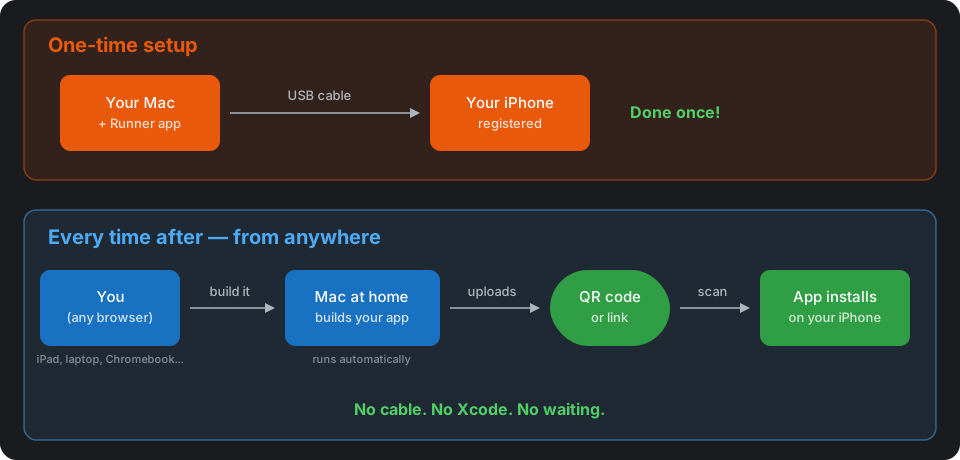
Step 1 (one time): Install the Appifex Runner app on your Mac. Plug your iPhone in with a USB cable and click "Install to device." This registers your phone with Apple — a one-time requirement that Apple enforces. Takes about two minutes.
Step 2 (every time after): Open Appifex in any browser. Describe what you want to build or change. Click build. Your Mac — wherever it is — picks up the job, compiles your app, and uploads it. A QR code appears on screen. Scan it with your phone. Your app installs in seconds.
That's it. No cable. No Xcode on your screen. No provisioning profiles. No TestFlight wait.
Your Mac works for you in the background
After you install the Runner app, your Mac becomes a build machine that quietly waits for jobs. It doesn't need a monitor. It doesn't need you sitting in front of it. It just needs to be turned on and connected to the internet.
When you hit "build" on Appifex — from any device, anywhere — your Mac wakes up, compiles your app, signs it so it works on your phone, and uploads the finished file. The whole process takes a couple of minutes for most apps.
You can be:
- On your iPad at a coffee shop
- On a borrowed laptop at a friend's house
- On a hotel computer while traveling
- On your work PC during lunch
Your Mac at home does the heavy lifting. You just tell it what to build.
How you get the app on your phone
When the build finishes, Appifex shows you a QR code and an install link. You have two options:
-
Scan the QR code with your iPhone's camera. It opens a page with an "Install" button. Tap it, and iOS downloads and installs the app directly. No App Store, no TestFlight.
-
Tap the link if you're already on your phone. Same result — one tap to install.
The install takes about 10 seconds on a normal internet connection. You'll see the app icon appear on your home screen just like any other app.
Why the first install needs a cable
Apple requires every iPhone to be registered before it can install apps outside the App Store. This registration happens through a USB connection to a Mac. It's an Apple security requirement, not an Appifex limitation.
The good news: it only happens once. After your phone is registered, it stays registered for a full year. Every build after that first one is wireless.
What this means in practice
Here's a real scenario. You're building a restaurant menu app. You described what you wanted on Monday from your Mac, plugged in your phone, and installed the first version. Now it's Wednesday. You're at lunch and you want to show your co-founder the latest version.
You pull up Appifex on your phone's browser, make a change to the menu layout, and hit build. Your Mac at home compiles it. Two minutes later, a QR code appears. You scan it, the app installs, and you hand your phone across the table.
No laptop bag. No cables. No "let me push this to TestFlight and wait 30 minutes."
The three ways to install, compared
| Method | Speed | Where you need to be | Best for |
|---|---|---|---|
| USB install | Instant | Next to your Mac with a cable | First install, fastest option |
| Wireless install | 2-5 minutes | Anywhere with internet | Daily development, demos |
| TestFlight | 15-45 minutes | Anywhere | Sharing with many beta testers |
You'll probably start with USB, switch to wireless for everyday testing, and use TestFlight when you're ready to share with a larger group. They work together — you don't have to choose just one.
One thing to know
The wireless install only works on iPhones that were registered during that first USB step. If you try to install on a different phone that hasn't been registered, it won't work. This is an Apple restriction on how app distribution works outside the App Store.
If you want to test on a new device, just plug it in once and do a USB install. After that, it's wireless too.
Want to try it? Set up your Mac runner once, then build and test your iOS app from any browser. Get started.
For the full Apple provisioning and code signing walkthrough, read Apple's provisioning flow explained for normal people. To understand how Appifex handles the full mobile pipeline from prompt to App Store, see the AI mobile app gap. And for security details on what gets built into every native app, check out AI code generator security.