Apple Provisioning Profiles Explained (Step by Step)
You have an idea for an iPhone app. Maybe you've even built one. Now you want to put it on the App Store so real people can download it.
What follows is the most confusing process in all of software development. Apple requires you to deal with certificates, provisioning profiles, bundle identifiers, code signing, App Store Connect, TestFlight, and App Review. None of these terms mean what you'd expect. Experienced developers struggle with this. If you're not a developer, it's basically impenetrable.
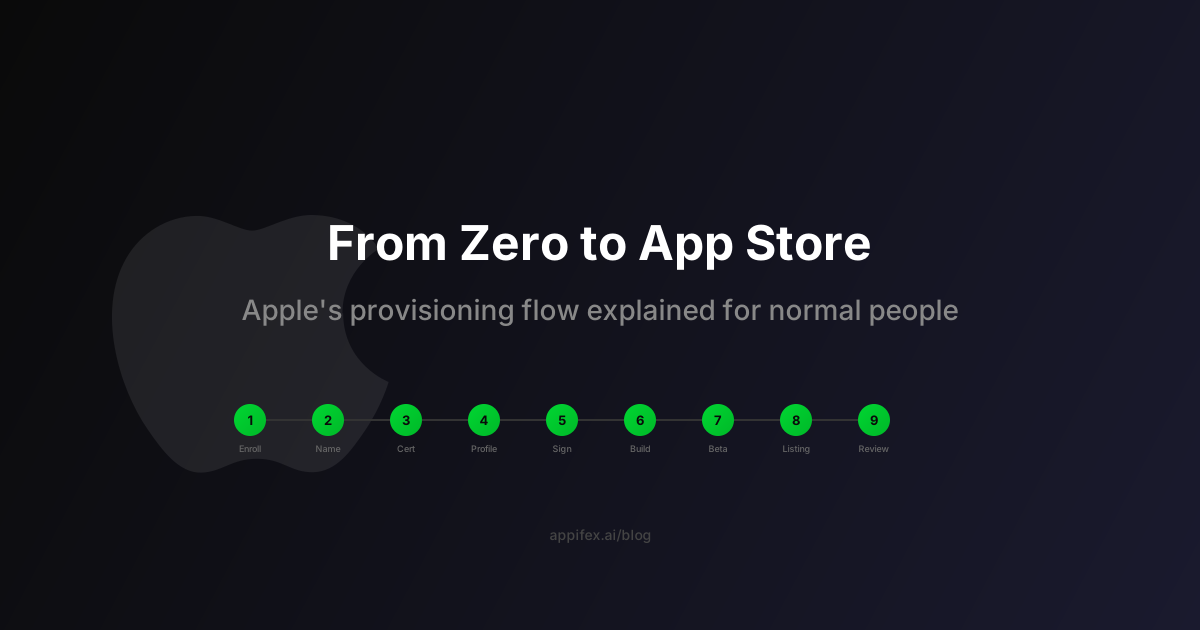
This post covers the entire flow in plain language, no assumed knowledge. Nine steps between "I have an app" and "it's on the App Store."
The full journey at a glance
Every step depends on the one before it. Skip one and everything downstream breaks.
Step 1: pay the entrance fee
Before anything else, you need an Apple Developer Program membership. Think of it like a business license. Without it, Apple won't let you distribute anything through their store.
Individual
Sign in, verify identity, pay. Approved in ~48 hours.
Organization
Need D-U-N-S number + business email. Approved in 3-5 business days.
Companies have extra hoops. Apple needs to verify your business is real, so you'll need a D-U-N-S number (a free business identifier from Dun & Bradstreet) and a professional email address. Apple may call to verify you're authorized to act for the company. Many first-timers get stuck here because they didn't request the D-U-N-S number in advance, and that alone can take a week.
Step 2: give your app a permanent name
Every app needs a Bundle Identifier. This is a unique string that Apple uses to identify your app forever. Not the display name users see in the store, but the internal identity.
Think of it as a Social Security Number for your app. It's globally unique across all apps on Earth, and once you use it, you can never change it. Pick a bad one and you have to create an entirely new App Store listing, losing all your reviews, ratings, and download history.
You register it in the Apple Developer Portal under Identifiers. This is also where you declare which special features your app needs: push notifications, Sign in with Apple, in-app purchases. Apple calls these capabilities.
Step 3: prove who you are (certificates)
This is where things start feeling bureaucratic. Apple needs to verify that you, specifically you, built this app, and that nobody tampered with it between your computer and the user's iPhone. The mechanism is a certificate.
Imagine you're a notary. Before you can notarize documents, you need to get certified by the state. The state issues you an official seal. When you stamp a document, anyone can verify it came from a real, certified notary by checking your seal against the state's records.
Apple certificates work the same way. Your computer generates a request, sends it to Apple, and Apple sends back a signed certificate that ties your identity to a cryptographic key on your machine.
Here's the exchange that happens behind the scenes:
Two kinds of certificates matter:
Testing on your own devices. A "work in progress" stamp. Only works on devices you've specifically registered with Apple.
App Store and TestFlight releases. The official seal. Required for any app that leaves your machine in a final form.
One painful detail: your certificate's private key lives on whichever computer created it. Switch to a new Mac or lose the old one, and you've lost the key. You'll need to revoke the old certificate and create a new one. This catches people off guard every time.
Step 4: get the permission slip (provisioning profiles)
If a certificate proves who you are, a provisioning profile proves what you're allowed to do.
Think of a provisioning profile like a concert wristband. The wristband combines three things: your ticket (which event), your ID check (you're really you), and a VIP list (which areas you can access). An iPhone checks all three before letting your app run.
A provisioning profile bundles four things together. All four must be valid, or the app won't run:
For development, the profile includes a list of specific devices by hardware ID (called UDID). Only those exact phones can run your app. For App Store distribution, the device list isn't needed because Apple handles verification on their side.
Lists specific devices by UDID. Only those exact phones can run the app. You manually add each device.
No device list. Tells Apple's infrastructure: "this app, signed by this developer, is cleared for distribution."
Why does Apple require all of this? Security. Before any app runs on any iPhone, Apple has cryptographically verified that it came from a verified developer, hasn't been modified, and is authorized to run. This is why iOS is historically much harder to install malware on than Android.
Step 5: seal the envelope (code signing)
Code signing is the act of stamping your finished app with your certificate so anyone can verify it's authentic.
You seal a letter with a wax stamp. If anyone opens the letter (modifies the app's code) after you seal it, the stamp breaks and the recipient knows it's been tampered with.
If the fingerprints match, the app is genuine. If they don't, even if a single file was modified, the app won't install.
Xcode can handle most of this automatically with "Automatically manage signing." But when it breaks (and it does break), the error messages are cryptic and the fixes are non-obvious even for experienced developers.
Step 6: build and package
With signing configured, you build your app into a distributable package. Xcode calls this "archiving." The archive gets validated and uploaded to Apple's servers.
Two numbers matter:
After upload, Apple "processes" the build for 15-30 minutes. During this time it doesn't appear anywhere in your dashboard. First-timers often re-upload thinking something went wrong. It didn't. Just wait.
Step 7: beta test with TestFlight
Before going public, most teams run a beta test through TestFlight, Apple's official beta testing platform built into App Store Connect. Think of it as a preview screening before a movie's wide release.
Internal testers are members of your App Store Connect team. Builds reach them almost immediately, no review needed. External testers can be anyone with an email address. The first build you send them goes through a lighter "Beta App Review," typically done within 24 hours. After that, most subsequent builds skip review. You can share a public invite link too.
Testers install the free TestFlight app, accept your invite, and use your beta app like a normal app. They can submit feedback with screenshots directly from TestFlight.
Watch out: 90-day expiry. TestFlight builds stop working after 90 days with no clear error message. Your testers will just see a broken app one day. Upload a fresh build before that deadline.
Step 8: set up your store listing
App Store Connect is your management portal. Before submitting for review, you fill out everything users will see on your App Store page.
| Field | Limit | Notes |
|---|---|---|
| App name | 30 chars | What appears in the App Store |
| Subtitle | 30 chars | One-line hook under the name |
| Description | 4,000 chars | Your pitch to users |
| Keywords | 100 chars | Comma-separated, for search ranking |
| Category | 1 primary | Games, Productivity, Health, etc. |
| Screenshots | 1-10 per size | Must show real app UI |
| Privacy policy | URL required | Must be accessible |
| Age rating | Questionnaire | Apple asks about content |
| Pricing | Tier or free | $0, $0.99, $2.99, etc. |
| Privacy labels | Declaration | What data you collect and why |
Screenshots deserve special attention. Apple reviewers will open your app and compare it to what you submitted. If they don't match, you're rejected. Privacy nutrition labels appear on your store page before anyone downloads, and deliberately lying about data collection is a guideline violation.
Step 9: survive App Review
The final gate. Apple's human reviewers check your app against the App Store Review Guidelines, covering five areas:
About 90% of submissions are reviewed within 24 hours. Most get a decision in 24-48 hours. Complex apps or sensitive categories (kids, financial services) can take longer.
If you're rejected, Apple sends specific feedback about which guideline was violated. You fix it and resubmit. Most apps pass on the second attempt.
The rejection nobody expects: if your app requires a login, you must include test account credentials in the "Notes for Review" field. Reviewers won't create accounts. If they can't get in, you're rejected.
Why it feels so hard
Apple optimized this system for security and control, not for ease of use. Certificates prevent impersonation. Provisioning profiles prevent unauthorized distribution. Code signing prevents tampering. App Review prevents malware and scams. The result is that iOS users can trust every app came from a verified source, but the cost is borne entirely by the developer.
The other reason it feels hard: the same concepts go by different names depending on where you look. A "signing identity" and a "distribution certificate" are the same thing. A "Bundle ID" and an "App ID" are nearly the same thing but not quite. The documentation assumes you already know the mental model before it explains the mental model.
What automation can do
Steps 3 through 6 (certificates, provisioning profiles, code signing, build configuration) don't require human judgment. They're mechanical processes that follow the same pattern every time.
At Appifex, when you tap "Submit to TestFlight," the system programmatically creates your distribution certificate through Apple's API, registers your bundle ID, generates a provisioning profile, configures code signing, builds the app, and uploads it. You never open Xcode or the Apple Developer Portal.
The three things that still require a human: enrolling in the Developer Program (Apple needs to verify your identity), providing your API key (a one-time authorization step), and filling out your store listing (screenshots and descriptions are creative decisions, not plumbing).
Everything else between those steps? That's what computers are for.
Building an iOS app? Appifex handles the provisioning plumbing so you don't have to.
For wireless device testing after your first build, see set up your Mac once, build from anywhere. To understand the security layers Appifex adds to every native app, read AI code generators skip security. And for the full mobile pipeline from prompt to App Store, check out the AI mobile app gap.