Apple native apps
Build true native iOS apps with Swift and SwiftUI. Your app speaks Apple's language directly — no translation layer, no third-party dependencies.
How it works
Why go native?
| Feature | Apple Native (Swift/Xcode) | React Native |
|---|---|---|
| Performance | Flawless, smooth graphics and animations | Good, but complex animations can stutter |
| Updates | Easy to handle Apple SDK updates | SDK updates can often break things |
| Dependencies | Standalone, less reliance on others | Heavily relies on 3rd-party packages |
| Hardware | Deep, easy integration (Camera, AR, etc.) | Can be clunky or require extra work |
| The catch | Only builds for Apple (iOS/macOS) | Builds for both Apple and Android |
If you want the absolute best experience on an iPhone, native is the way to go.
Step 1: Connect your Mac (Appifex Runner)
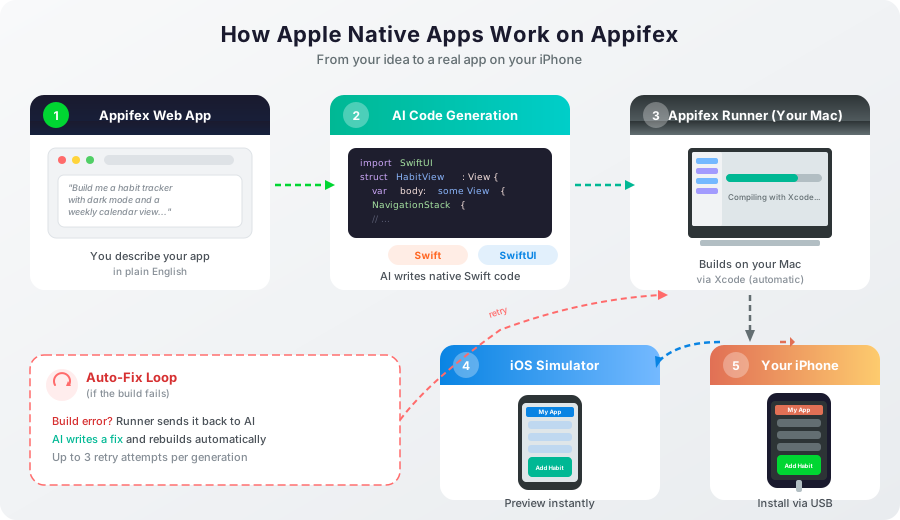
Apple requires a Mac to build native apps. Appifex uses a companion app called Appifex Runner that handles compilation and device deployment in the background.
-
Log in to the Appifex web app on your Mac.
-
Start a new project and select the Apple Swift flow.
-
A Set up Mac runner modal appears.
-
Download the Runner app, or click the download button in the setup modal:
Download for macOS (Apple Silicon) -
Open the Runner — on first launch it may install developer tools (Xcode, Command Line Tools, Homebrew). Xcode is a large download, so this can take a while.
- Mac: Apple Silicon (M1 or later) running macOS 14 Sonoma or later
- Xcode: 16.0 or later (installed automatically by the Runner if missing)
- Back in the web app modal, click Register runner. Copy the generated token, paste it into the Runner app, and your Mac is connected.
Expect the initial Mac setup to take about 20 minutes, mostly waiting for Xcode to download. You only need to do this once.
Step 2: Generate your app
- In the Appifex web app, type what you want your app to be. Be descriptive:
"Build me a habit tracking app with a dark mode, a big 'Add Habit' button,
and a weekly calendar view."
- Hit Generate and watch the code appear.
- Appifex sends the generated code to your Runner, which compiles it locally.
Generating a typical app takes about 10 to 20 minutes depending on complexity.
Step 3: Preview in the simulator
Once the Runner finishes compiling, it automatically launches the iOS Simulator on your Mac with your app running.
- First-time simulator boot may take a minute or two.
- If the build fails, the Runner shows the error. Click Run a Fix — the Runner sends the error back to Appifex, generates a fix, and rebuilds automatically.
Step 4: Install on your iPhone
1. Create a free Apple Developer account
Go to developer.apple.com/account and sign in with your Apple ID. You do not need to pay the $99/year fee just to test on your own phone.
2. Connect your Apple credentials to Appifex (optional)
This step is optional. You only need Apple credentials if you want to install the app on a physical iPhone. You can skip this and still generate, build, and preview your app in the simulator.
In the Appifex web app with Apple Swift selected:
- Open the Build & Run tab.
- Under Apple Credentials, upload the following:
- App Store Connect API Key (
.p8file) — generate one here - Issuer ID — shown at the top of the API Keys page
- Key ID — shown next to your key after you create it on the same API Keys page
- App Store Connect API Key (
- Go to App Store Connect > Users and Access > Integrations > App Store Connect API
- Click the + button to generate a new key
- Give it a name (e.g. "Appifex") and select the Developer role
- Click Generate — then download the
.p8file (you can only download it once) - Copy the Issuer ID from the top of the page and the Key ID from the table
3. Trust your developer account on your phone
- On your iPhone, go to Settings > Privacy & Security > Developer Mode and turn it On (your phone will restart).
- Plug your iPhone into your Mac with a cable.
- In the web app Build & Run tab, click Install to Device. Keep your iPhone unlocked and awake during installation.
- When you first tap the app, you'll see an "Untrusted Developer" error. Go to Settings > General > VPN & Device Management, tap your Apple ID, and hit Trust.
You only need to do the Developer Mode and Trust steps once per device.
Example prompts
Utility app:
"Build a unit converter with categories for length, weight, temperature,
and currency. Clean minimal design with haptic feedback on conversions."
Game:
"Build a simple 2D puzzle game with SwiftUI animations,
score tracking, and a leaderboard screen."
Productivity:
"Build a Pomodoro timer with customizable intervals,
session history, and local notifications when a timer ends."
FAQ: Install to device
Do I need a paid Apple Developer account to install on my iPhone?
No. Appifex includes one free device install using our shared Apple Developer accounts. You can generate, build, and install your app on a single iPhone without paying Apple anything.
You only need a paid Apple Developer account ($99/year) if you want to:
- Install on more than one device
- Submit to TestFlight or the App Store
- Use advanced capabilities like push notifications or in-app purchases
What do I need before clicking "Install to device"?
Three things:
- Appifex Runner running on your Mac and showing as online
- Your iPhone plugged into your Mac via USB cable
- Developer Mode turned on (see below)
How do I enable Developer Mode on my iPhone?
- Go to Settings > Privacy & Security
- Scroll down and tap Developer Mode
- Toggle it on — your iPhone will restart
- After restart, confirm the prompt to enable Developer Mode
You only need to do this once. Developer Mode stays on until you turn it off.
Developer Mode was introduced in iOS 16. If you're on iOS 15 or earlier, you don't need this step, but you may need to update your device to use the latest Xcode features.
My install failed with "Developer Mode disabled"
Your iPhone's Developer Mode is turned off. Follow the steps above to enable it, then tap Retry in the Appifex web app.
My install failed with "Device is locked"
Your iPhone's screen was locked during the install process. Unlock your iPhone, keep the screen on (disable auto-lock temporarily if needed), and tap Retry.
Go to Settings > Display & Brightness > Auto-Lock and set it to Never while you're installing. Remember to change it back after.
My install failed with "Device not found"
Your iPhone isn't being detected by the Mac. Try these steps:
- Unplug and re-plug the USB cable
- On your iPhone, tap Trust when the "Trust This Computer?" dialog appears
- Try a different USB cable or port
- Make sure Appifex Runner is online (check the green dot in the Build & Run tab)
I see "Untrusted Developer" when I open the app
This is normal for the first install. Go to Settings > General > VPN & Device Management, find your Apple ID (or the Appifex account), and tap Trust. You only need to do this once per signing identity.
What does "Your free device install is registered to another device" mean?
Each Appifex account gets one free device slot that is permanently tied to the first iPhone you install on. If you connect a different iPhone, you'll see this message.
To install on a different device, connect your own Apple Developer account in the Build & Run tab. This gives you unlimited device installs (up to Apple's 100-device annual limit).
How do I connect my own Apple Developer account?
- Open the Build & Run tab in your project
- Click the Connect Apple Developer account button (or find it in Apple Credentials)
- You'll need four things from Apple:
- API Key (.p8 file) — create one here
- Key ID — shown next to your key after creation
- Issuer ID — shown at the top of the API Keys page
- Team ID — found at developer.apple.com/account under Membership Details
Apple only lets you download the .p8 file once. Save it somewhere safe. If you lose it, you'll need to create a new key.
Can I change which device gets my free install?
No. The free device slot is permanent. Once a specific iPhone is registered, it cannot be changed or transferred. This is because Apple counts registered devices against a yearly quota, and there's no way to remove a device once registered.
If you need to switch devices, connect your own Apple Developer account.
My install failed with "No signing certificate" or "Provisioning profile issue"
This usually means your Apple Developer credentials need to be reconnected:
- Open Build & Run tab
- Disconnect your current Apple credentials
- Reconnect them with the same API key, or create a new key if the old one was revoked
- Try the install again
If you're using the free Appifex device slot (no Apple Developer account connected), this error shouldn't occur. Contact support if it does.
How long does "Install to device" take?
Typically 2-5 minutes from clicking the button to seeing the app on your phone. This includes compiling the code, signing the app, and transferring it to your device.
The first install on a new project may take slightly longer since the Mac runner needs to resolve dependencies.
Can I install on an iPad?
Yes, if your app supports iPad. The same process applies — connect the iPad via USB, enable Developer Mode, and click Install to device. iPad and iPhone device slots are counted separately against Apple's quota.
My Runner is online but says "No physical iOS device connected"
The Runner detected your Mac but can't see a plugged-in iPhone. Check:
- The USB cable is connected and your iPhone is unlocked
- You tapped Trust on the "Trust This Computer?" prompt on your iPhone
- The iPhone shows up in Finder (macOS) when connected
- Try a different cable — some cables are charge-only and don't support data transfer
Can I use a wireless connection instead of USB?
Not currently. Device install requires a USB connection between your iPhone and the Mac running Appifex Runner.